AI Setup
Configure local or cloud AI providers for narrative drafting, portraits, and function analysis.
On this page (7)
sight·line includes AI that helps you draft observation narratives, summarize sessions, build clinical portraits, and analyze behavioral functions. You choose where the AI runs — locally on your machine or through a cloud provider.
AI features require the Pro + AI license tier. Without it, you’ll see a message: “AI features require Pro + AI.”
Choose a provider
sight·line supports four AI providers. Pick the one that fits your privacy requirements and workflow.
| Provider | Type | Data privacy | Best for |
|---|---|---|---|
| Local (Built-in) | Local | Data never leaves your machine | FERPA-covered settings, no internet needed |
| Anthropic (Claude) | Cloud | Sent to Anthropic servers | Highest quality narratives |
| OpenAI (GPT) | Cloud | Sent to OpenAI servers | Fast, cost-effective |
| Google (Gemini) | Cloud | Sent to Google servers | Fast, cost-effective |
For schools and clinics where student privacy is a priority, we recommend Local (Built-in) — your observation data never leaves your computer, and no internet connection is required.
Cloud providers send observation data to external servers when generating summaries. If you use a cloud provider, make sure your district or organization has appropriate data processing agreements in place.
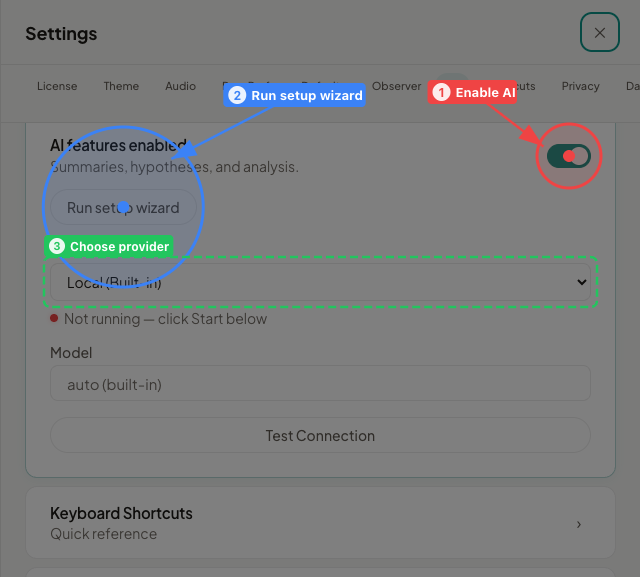
Run the setup wizard
sight·line walks you through AI setup with a three-step wizard. You can run it during first launch or anytime from Settings > AI Assistant > “Run setup wizard”.
Step 1: Choose your provider
Select one of the four providers listed above. You can change this later.
Step 2: Connect
What you see depends on the provider you chose:
If you chose Local (Built-in):
- Click Start Local AI to launch the built-in AI engine.
- A status indicator appears — green means connected, red means the engine isn’t running yet.
- If you haven’t downloaded a model yet, the app will prompt you to open the Model Manager (see Download a local model below).
If you chose a cloud provider (Anthropic, OpenAI, or Google):
- Enter your API key in the text field. You get this key from the provider’s website (Anthropic Console, OpenAI Platform, or Google AI Studio).
- You’ll see a privacy banner: “Cloud providers receive observation data when generating summaries. With Privacy mode enabled, student names are removed before sending.”
- Privacy Mode is on by default. We recommend keeping it on for FERPA-covered settings. See Privacy Mode below for details.
- Select a model (optional) — each cloud provider has a default model, but you can pick a different one from the dropdown. You can also enter a custom model ID if your provider supports it.
Step 3: Test connection
Click the test button to verify that sight·line can reach your provider. The wizard confirms success or shows an error if something went wrong (wrong API key, local engine not running, etc.).
Download a local model
The built-in AI engine runs entirely on your machine. You download and manage models directly inside sight·line — no external tools required.
Open the Model Manager from the AI settings panel. The Model Manager lists available local models with their display name, approximate download size, and a stability label (Stable or Experimental).
For everyday use, choose a Stable model. Smaller models (approximately 3 GB) run well on 8 GB Macs, while larger models (5–6 GB) are recommended for 16 GB or more. Click the download button next to a model. Once the download finishes, that model is ready to use. You can switch between downloaded models at any time.
Privacy Mode
Privacy Mode protects student identity when you use cloud providers. It is on by default and recommended for FERPA-covered settings.
How it works:
- Before sending data to a cloud provider, sight·line replaces student names with a generic placeholder.
- The AI generates its response using the placeholder.
- sight·line automatically restores the real names in the output you see.
If you turn Privacy Mode off, sight·line shows a FERPA warning. Student names will be included in data sent to the cloud provider. Only disable this if your organization’s data agreements explicitly allow it.
Privacy Mode does not apply to the Local (Built-in) provider, since that data never leaves your machine.
What AI can do
Once you’ve connected a provider, AI features appear throughout the app — primarily on the results screen and in the FBA workspace.
- Narrative drafting — generates observation narratives in clinical language for evaluations. Includes temporal grounding (what happened when) and phase-aware comparisons (how behavior changed across conditions).
- Session digests — produces a one-paragraph summary of a session with key statistics and notable patterns.
- Clinical portraits — synthesizes data across multiple sessions into a behavioral profile, identifying consistent patterns and changes over time.
- Function analysis — analyzes ABC (Antecedent-Behavior-Consequence) data to detect patterns, calculate conditional probabilities, and suggest potential behavioral functions for FBA reports.
Change your provider later
You can switch providers or update your API key anytime:
- Go to Settings > AI Assistant.
- Choose a different provider, enter a new API key, or click “Run setup wizard” to start fresh.
- Test the connection to confirm everything works.
Troubleshooting
Local AI status indicator is red Click the Start button in AI settings to launch the built-in engine. If it doesn’t start, make sure you have a model downloaded in the Model Manager.
“AI features require Pro + AI” Your current license doesn’t include AI. Upgrade to the Pro + AI tier to unlock these features.
Cloud provider test fails
Double-check your API key. Make sure you copied the full key, including any prefix (like sk-). Confirm your provider account is active and has available credits.
AI responses are slow with Local (Built-in) Try switching to a smaller model in the Model Manager. Close other memory-intensive applications. Local AI performance depends on your Mac’s available RAM.